
Gadgets
Update on new gadgets
5 Amazing Gadgets from Aliexpress
How Oldschool ROM Cartridge Games Worked
Ask Hackaday: Drone Swarms Replace Fireworks; Where are the Hackers?
Your mom always warned you that those fireworks could put an eye out. However, the hottest new thing in fireworks displays is not pyrotechnic at all. Instead, a swarm of coordinated drones take to the sky with different lighting effects. This makes some pretty amazing shows possible, granting full control of direction, color, and luminosity of each light source in a mid-air display. It also has the side benefit of being safer — could this be the beginning of the end for fireworks accident videos blazing their way across social media platforms?
For an idea of what’s possible with drone swarm displays, check out the amazing pictures found on this site (machine translation) that show off the 3D effects quite well. Note that although it appears the camera is moving during many of these, the swam itself could be rotated relative to a stationary viewer for a similar effect.
What I couldn’t find was much going on here in the hobby space. Granted, in the United States, restrictive drone laws might hamper your ability to do things like this. But it seems that in a purely technical terms this wouldn’t be super hard to do — at least for simple designs. Besides, there must be some way to do this in US airspace since drone performances have been at the Super Bowl, Los Angeles, New York, Miami, and Folsom, CA.
So if the regulations were sorted, what would it take to build a swarm of your own performing drones?
The Challenge of Air Traffic Control
The hardest part would be keeping the aircraft in tight formation. Depending on how tight you wanted it, GPS might be sufficient, with the option of springing for differential GPS or some other higher resolution solution. The more difficult bit is avoiding mid-air collisions. Drones take a bit of real estate to correct from unexpected velocity change and even a small bump between two could cascade like three-dimensional dominoes through the swarm. You’d need to make sure none of them were crossing the same volume of space at the same time with enough margin of error to account for position uncertainty, wind gusts, and so forth.
According to an article from earlier in the year, many companies build their own hardware and software, some specializing in outdoor GPS-based shows while other focus on indoor presentations. That article mentions the distance between drones can be between 1.5 and 3 meters. To help with safety concerns, some companies use tiny drones which also makes a lot of sense in terms of maneuverability.
I’ve have seen some control software for setting up shows. It supports many different kinds of drones, including the relatively cheap Spark. There is a GitHub with some examples of using it — it is apparently using Blender for the animation parts. Of course, there are also competitors.
So Where is the Open Source?
I’m frankly surprised at the lack of open source or DIY projects. The most obvious limitation would be cost, as even a small display will call for dozens of drones, which need to be built, stored, transported, and tested. But considering some of the huge installations build for hacker camps it’s not outside of the realm of possibility. The widespread hunger for consumer drones means a wide set of ready-made drones are both available and affordable and much has been done to reverse engineer firmware on the most ubiquitous models.
I think almost everything you need on the software side is already out there in some form. Obviously, Blender can do the animation. There are already Open Source autopilots. There was some work on something called OpenDroneControl, but it hasn’t been active for awhile.
So am I just missing it? Are there some open source tools that are at least marginally easy to use? Or is this a ripe ground for some hacking projects? Tell us in the comments if you’ve done any swarming and how you did it. Or, if you know of any tools we should be aware of, chime in with that, too.
source https://hackaday.com/2019/12/26/ask-hackaday-drone-swarms-replace-fireworks-where-are-the-hackers/
40-Node Raspberry Pi Cluster: Introduction
Can a Raspberry Pi 4 be used as a Desktop PC – Full test and review
#295 Raspberry Pi Server based on Docker, with VPN, Dropbox backup, Influx, Grafana, etc.
Raspberry Pi 4 OpenMediaVault NAS
Raspberry Pi Field Computer | Ham Radio
EcubMaker – 4in1 Multi Tool 3D Printer – Unbox & Setup
Infinity Mirror Pentagon Shape
This tutorial is about making a little shape that creates a lot of reflections inside. With holes on every angle for light and a little window to see through, you can watch this infinity proces in your hand! The idea came from watching infinity mirror video’s and trying to think of any variation on them. Hope you like it! 🙂
https://cdn.instructables.com/ORIG/F9K/ONJN/JT91LKEG/F9KONJNJT91LKEG.pdf
Step 1: Make or Order the 3mm Lasercut Acrylic Mirror Parts


i made a vector drawing and made an order online to lasercut these shapes from 3mm acrylic sheet mirror. Once received, we can start! :)Add TipAsk QuestionCommentDownload
Step 2: Make a Simple Paper Strip With Double Sided Tape to Construct the Infinity Polygon Shape


2 More Images
the assembling is pretty easy this way. I made a 2cm strip of thick paper and scored this strip. A path of 2mm wide needed to be scored in the middle. apply double sided tape on the other side and make the folds.Add TipAsk QuestionCommentDownload
Step 3: Assembling Time!


2 More Images
cut the paper strip to lengths of the pentagon side and work your way trough. Keep the 3 with the viewing hole side for last. It’s fun to see the reflections increasing with every element you assemble 🙂
Once the job is done, look inside and enjoy!
Marble Clock
Marble Clock is a 3D printed rolling ball clock that tells the time by the location of marbles/balls. It consists of 3 main rails, where,
- The 5-minute rail with 1-minute intervals
- The 60-minute rail with 5-minute intervals
- The 12-hour rail with 1-hour intervals
add up and tell the time.
Outline
In the first step, I will give you a little bit of history of rolling ball clocks and ball clocks in general. Next, I will explain the Idea behind this project. Then I will give you an insight into the design process of this clock, so you’ll be able to design your own clock. I’ll give you a 3d print guide so you can easily print the required pieces and arrange them. After giving you a step by step assembly guide and show you how to sync your clock, I’ll end the instructable with a troubleshooting guide. So, if you encounter any problems during your build you can solve them easily.
The purpose of this instructable is not just to give you a cookbook. I’ll show you the way I built this project and provide you with open-ended questions, so you can add your own ideas, and take this project even further. Many parts I’ve designed are not connected. This way you can change the design to your own liking and then glue them together.
I strongly encourage you to share your build when it’s done!
Let’s get started.
This instructable is based on the design called “rolling ball clock” that was invented by Harley Mayenschein in the 1970s. He patented his invention and started a company which began to manufacture these clocks from solid hardwoods in the 1980s.[1]
The original rolling ball clock had 3 main rails, 2 for minutes and 1 for the hour. by adding the two rails one can get the total minute. This way the time was shown.[1]
There were many varieties of these clocks … for example the kineticlock (more info: kineticlock.ca)which had 10 minutes intervals instead of 4, or the Chronomeans Clock which was built with anodized aluminium.
Other rolling ball clock varieties:
- Pendulum rolling ball clock
- Wall mounted ball clock
- Celebration rolling ball clock
- About time ball clock
Source:
[1] https://en.wikipedia.org/wiki/Rolling_ball_clock
Further Reading:
http://www.chilton.com/~jimw/ballclks.html
Step 2: The Idea

I’ve been a long time fan of ball clocks. I’ve seen one when I was a kid in a novelty store. And I just stood there watching it endlessly. The movement of the balls with time was magic to me. After I heard about the clock contest on Instructables. It gave me the Idea to try to design and build a ball clock from scratch. So I started to sketch on paper.
What I wanted to do was to design a different lifting mechanism instead of the traditional rotating scoop type design. So then it hit me. I was going to use a rotary to linear motion mechanism so while the mechanism was rotated by a motor the ball would be moving in a line, up and down. Creating a little illusion.
The rails were mostly inspired from other ball clocks but I had an idea to create a bell mechanism so everytime one hour passes there would be a sound. Unfortunately, I could not build this into the project.
Step 3: Tools & Parts

Note: these are the Tools&Parts I had available. You can use any other part for your needs.
Tools:
- 3D printer – min 25*25*15cm area
- exacto knife (to cut sharp edges)
- drill/dremel with 3mm tip
- Tack-it (or any other reusable & removable adhesive)
Parts:
- 9 x 40mm M3 bolts and nuts
- 7 x 30mm M3 bolts and nuts
- 2 x 20mm M3 bolts and nuts
- 4 x 15mm M3 bolts and nuts
- 8 x 10mm M3 bolts and nuts
- 16 x 6mm M3 bolts and nuts
- 7 x (3mm*6mm*2.5mm) ball bearing
- 1 x (F6-14M 6mm x 14mm x 5mm) Thrust Bearing
- 1 x 28byj-48 stepper
- 1 x Arduino uno (or any other microcontroller to drive the stepper motor)
- 100 x 11mm Steel Ball (you only need 30 but they get lost quite easy)
- 290x130x3mm wood plate
3D Printed Parts :
all parts are on step 5 I recommend you to read read step5 before printing them.
Step 4: Design Process


You can skip this step if you just want to print the project. This step is for people who want to design their own ball clocks or want to add new features to this project. It gives an insight on how the ball rails were designed in Fusion 360.
If you are new to the Fusion 360 environment I suggest you take a look at a few tutorials.
You can enroll in this class: https://www.instructables.com/class/3D-Design-Clas…
also, this youtube series gives a good beginner tutorial: https://www.youtube.com/watch?v=A5bc9c3S12g
I suggest you to read this step after you’ve seen the tutorials.
Details on the design process are noted on the images.
Base Structure & Rails
The base structure is basically 6 rails holding 4 rods. The rods(8mmx8mm) were designed to be sturdy. They are held by bolts to a wood plate. The rails were inspired by the original rolling ball clock. But the dimensions are different due to different ball sizes and weight distribution.
Elevator
The elevator design was inspired by this mechanism. User mgg942 used this design and created a rotary to linear drive on Thingiverse . I tweaked and re-designed this to create an elevator mechanism.
Step 5: 3D Print

There are two seperate .zip files you can download.
The 3d parts.zip folder contains all the parts for the clock separately.
The 3d_parts_sets.zip contains 5 sets. each set is designed for a 25x25cm print area.
If you have a large print area you can print these like I arranged them in sets. Or you can print them separately.
I suggest you to finish printing before the assembly of any pieces. It’s much easier if you lay them on a table in an arrangement. Like a LEGO set.
Each part is given a number and a letter. these will be useful while following the building instructions next step.
https://cdn.instructables.com/ORIG/FUG/FY46/JK2UIQ4P/FUGFY46JK2UIQ4P.zip
https://cdn.instructables.com/ORIG/F60/3E8K/JK2UIQ73/F603E8KJK2UIQ73.zip
Step 6: Base Assembly


6 More Images
you can use the pdf template to drill holes on the wood.
Parts used in this step:
- [3d printed] 1a-3f (28 parts)
- 5 x 40mm M3 bolts & nuts
- 6 x 30mm M3 bolts & nuts
- 3 x 15mm M3 bolts & nuts
- 6 x 10mm M3 bolts & nuts
- 10 x 6mm M3 bolts & nuts
- 4 x (3mm*6mm*2.5mm) ball bearing
Tools used:
- Tack-it
- philips head screwdriver
- pliers
Estimated Time:
- 15-20 minutes
Note: Assembly instructions are noted on the images.
Step 7: Center of Gravity


This is the most important part of this project. I did not design the rail pieces connected to the joints. This way everyone can adjust them to their needs. The rails and the connectors under them are not attached. You have to figure out the center of gravity and glue it when you are certain. Let’s begin,
The 5min rail:
Slowly put 4 balls on the minute rail. And position the connector piece accordingly so it doesn’t tip over. It should tip over when the 5th ball comes. This takes a bit of time to adjust. When you’re satisfied go to the 15min rail.
The 15min rail:
Slowly put 11 balls on the rail. again it shouldn’t tip over while 11 balls are on it. When the 12th ball arrives it should tip over.
The Hour rail:
This is the same as the 15min rail. wherever you glued the connector on the 15min rail you can glue it on the same place on the hour rail.
Lastly, to test them all at once put 11 balls on the hour and 15min rails and 4 balls on the 5 min rail. then drop one ball to the 5 min rail. They all should go smoothly and leave the rails
Step 8: Elevator Assembly


3 More Images
Parts used in this step:
- [3d printed] 4a-5d (9 parts)
- 1 x 25byj-48 Stepper
- 4 x (3mm*6mm*2.5mm) ball bearing
- 1 x (F6-14M 6mm x 14mm x 5mm) Thrust Bearing
- 2 x 10mm M3 Bolts & Nuts
- 2 x 25mm M3 Bolts & Nuts
- 2 x 6mm M3 Bolts & Nuts
- 4 x 40mm M3 Bolts & Nuts
Tools used:
- Tack-it
- philips head screwdriver
- pliers
Estimated Time:
5-10 minutes
Note: Assembly instructions are noted on the images.
Step 9: Driving the Motor & Timing


How to drive the motor
To drive the 28byj-48 stepper motor with a constant speed I’ve used an Arduino Uno with the AccelStepper library. you can download the library here . If you don’t have experience with Arduino or don’t know how to install libraries you can check this site.
Connect the pins on the stepper motor to the Arduino like this:
Stepper—Arduino
- IN1 —-> 2
- IN2 —-> 3
- IN3 —-> 4
- IN4 —-> 5
After uploading the code you are good to go!
Timing
The most important thing about a clock is precision. We want this clock to be as precise as any other wall clock/ watch so it works without any error. To do this we have to change the speed of the motor so the elevator completes 1 revolution in 60 seconds precisely.
Now get a stopwatch in your hand and run the motor. Start the stopwatch when the elevator gear crosses a specified point. And stop your watch when it crosses the point again. Take a note at the time. now let’s calculate the required speed
T = time on your stopwatch
t = 60s (time you want it to complete 1 revolution)
M = old motor speed(“stepper.setSpeed()” in code)
m = new motor speed(“stepper.setSpeed()” in code)
new motor speed(m) =(T*M) / t
Insert this into the code and check your stopwatch again, repeat this until you are satisfied with the result
https://cdn.instructables.com/ORIG/FSD/ZED3/JK2UJ6GQ/FSDZED3JK2UJ6GQ.ino
Step 10: First Test

You’re done with the build now it’s time to test this clock!
Check your watch and put the balls according to the time. And start the motor when you are ready. It’s really fun to watch time go by with this clock. Go and put yourself some tea and enjoy the sound off balls clicking. Now while doing that you should check a few things to be sure that this clock can run for 7/24 straight.
Things to look for:
- Can the elevator bring a ball without dropping it each minute?
- Are balls not getting stuck on the rails after 2-3 hours?
- Is the clock on time after several hours?
If your answer is no for at least one of those questions, you can check the Troubleshooting step!
If your answer is yes, then congratulations you’ve built a precise ball clock!
Article brought from Marble Clock by gocivici on Instructables
How a USB key defeated security on the Sony PlayStation 3 | MVG #youtubevids
15 LEGO CREATIONS THAT WILL BLOW YOUR MIND! #youtubevids
Epic Cycling | Truly Unique Bicycle that Walks #youtubevids
Fabriquer un CIRCUIT IMPRIME TRANSPARENT ! [ENG Sub] #youtubevids
2 Creative ideas from Arduino #youtubevids
Tesla Powerwall
Technical Specs

45.3″ / 1150 mm29.6″ / 753 mm5.75″ / 147 mm
- Usable Capacity13.5 kWh
- Depth of Discharge100%
- Efficiency90% round-trip
- Power7kW peak / 5kW continuous
- Supported ApplicationsSolar self-consumptionBack-up powerTime-Based controlOff-grid capabilities
- Warranty10 years
- ScalableUp to 10 Powerwalls
- Operating Temperature-4°F to 122°F / -20°C to 50°C
- DimensionsL x W x D: 45.3″ x 29.6″ x 5.75″(1150 mm x 753 mm x 147 mm)
- Weight251.3 lbs / 114 kg
- InstallationFloor or wall mountedIndoor or outdoor
- CertificationNorth American and InternationalStandardsGrid code compliant

Arduino RGB Color Mixer
A fun, interactive project for makers new to Arduino. Control the brightness of an RGB LED with Potentiometers, with on/off switch built in.
ABOUT THIS PROJECT
Who is this for?: This RGB LED color mixer project is perfect for the beginner Arduino user who is keen to try an build an interactive gadget this is not only fun and easy to make, but could be useful for anyone who uses RBG colors, such as artists, web developers and interactive lighting controllers.
What is does: This simple circuit combines three potentiometers to set the brightness for each of the red, green and blue LED’s inside an RGB LED.
A pushbutton switch is added an an extra feature to turn the circuit on and off.
How do I build it tho? Wire the diagram as shown in the schematics. The RGB Led is wired to PMW pins 9, 10 and 11 on the Arduino. The pushbutton is connected to pin 7 and the 3 potentiometers to A0, A1 and A2. Remember to add a 10K ohm pull up resistor to the ground connection on the pushbutton. For an explanation as to how this works, check out here https://playground.arduino.cc/CommonTopics/PullUpDownResistor
Also make sure to connect 3 220 ohm resistor’s between the LED and the output pins, this will ensure your LED does not burn out.
The value of each Potentiometer is printed to the serial monitor, so if you are fiddling with the LED and find a color you like, you can record the RGB value to use later.
Once you have the circuit wired up and the sketch uploaded, try turning the knobs on the potentiometers. Nothing should happen at first until you hit the button. Now try turning the knobs again. The led should now light up. Time to play with light! Remember RGB light is not like mixing paint. when all the potentiometers are on full, the light should be white. Try leaving one of the potentiometers off or very low, and varying the other two.
An extension to this project would be to hard code some RBG values for particular colours you like, and add some more push buttons which, when pressed, would set the RGB LED to those colours. Feel free to share the code if you try an extension like this!
Enjoy!
int blue = 9; // Define Digital Pins for each colour of the LED
int green = 10;
int red = 11;

int redPot = A0;
int greenPot = A1; //Define Analog Pins for the 3 potentiometers
int bluePot = A2;


int greenVal = 0; //Create a variable to store the state of each Potentiometer
int blueVal = 0;
int redVal = 0;

const int BUTTON = 7; //Define the button Pin
int state = 0;    //Create a variable to store wether button is on or off
int val = 0;      //Create a variable to store the momentary state of the button
int old_val = 0;  //create a variable to store the previous state of the button

void setup() {
  // put your setup code here, to run once:

  pinMode(green, OUTPUT);  //Set LED's as output's, button as input
  pinMode(blue, OUTPUT);
  pinMode(red, OUTPUT);
  pinMode(BUTTON, INPUT);
  Serial.begin(9600);
}

void loop() {
  // put your main code here, to run repeatedly:
  Serial.begin(9600);                       //Open the serial monitor at 9600 baud

  val = digitalRead(BUTTON);                // Check state of button

  if ((val == HIGH) && (old_val == LOW)) {  //Check to see if state of button has changed
    state = 1 - state;                      //Set the button as either on (1) or off (0)
    delay(10);
  }

  old_val = val;                            // Save the previous button reading to compare next time through loop

  greenVal = analogRead(greenPot);          //Read the position of the potentiometers
  blueVal = analogRead(bluePot);
  redVal = analogRead(redPot);

  if (state == 1) {                         //If button is on, set the state of each LED according to position
    analogWrite(green, greenVal / 4);       //of its correspoding potentiometer. Anolog inputs range from 0-1023,
    analogWrite(blue, blueVal / 4);         // while anolog outputs as PMW can be from 0-255. Therefore we must
    analogWrite(red, redVal / 4);           // divide the potentiometer readings by 4 to set the state correctly

    Serial.print("RGB(");
    Serial.print(redVal/4);
    Serial.print(",");
    Serial.print(greenVal/4);
    Serial.print(",");
    Serial.print(blueVal/4);                 //Print the RGB Code, resuable in any RGB application
    Serial.println(")");

    delay(50);
  } else {                                   // If button is off, set all LED's to LOW/off
    analogWrite(green, 0);
    analogWrite(blue, 0);
    analogWrite(red, 0);
    delay(50);
  }
}

Want more? Click here to see the other projects on the Arduino Projects hub

iKhoka
We make it easier to accept card payments
Independent and innovative, iKhokha card machines make it easier for thousands of South African businesses to accept card payments.
Pair any iKhokha card machine with your Android or iOS device via Bluetooth and – Boom – you’re in business.

Holovect – Holographic Vector Display
The Holovect Mk II is a self-contained laser-based volumetric display system that fits on your lab bench or desktop. It is the perfect companion to a 3D printer and a stand-alone educational or promotional device. The Holovect Mk II is the first commercially available, laser-based desktop “holographic” display, capable of drawing 3D objects in air with light.

Holographic
Holovect images are NOT holograms but instead volumetric vector images projected onto modified air (i.e. projections in space). This distinction is due to the fact that a hologram is a recording of interference patterns on film or glass plates that contains three-dimensional information about an object (greek root “holo” means whole or complete, and “gram” means record). However, since Holovect images contain three dimensional information and are free-floating objects in air, they are most certainly holographic. They are real 3-D projections.
Mirage Technology
So how does it work? The principles are simple. When light travels between two different mediums in most cases you get three different effects to some degree: refraction (bending), reflection, and/or diffusion, depending on the different “refractive index” (RI) of the materials. An example of this are mirages, which occur when a portion of air has a different RI than its surroundings, causing light beams to bend and be reflected in unexpected ways. This can happen because of temperature or pressure differences from one region to the next.
With the holovect technology, we have invented how to control air within a box shaped section of space to precisely modify the RI within specific regions to refract and reflect a laser beam. This modification raises the “albedo” which is defined as the proportion of the incident light that is reflected by a surface, as well as the refractive properties at the boundary between the modified and unmodified air. Therefore by simultaneously controlling the aim of the laser and the position of a modified air column, a computer can place a volumetric pixel or voxel of light anywhere in 3D space. Then by keeping a laser beam on as it aims from point A to point B a line is drawn which is a 3D vector, and by joining many vectors in a sequence a holographic vector object can be generated. The Holovect Mk II is capable of drawing a complete image 50 times per second within
a 12cm by 12cm by 12cm cube we call the “drawbox”. Outside of this box things get messy, unpredictable and, in general, not useful.

VECTS
“Vect” objects are the data-structure developed for the Holovect. Put simply it is a list of 3D coordinates that result in lines drawn in a head-to-tail sequence in space, which are compiled into vect class objects. The files are straightforward and easy to create using a variety of online tools, spreadsheets, or good old pencil and graph paper. Once loaded, vects can be rotated in three axes and moved around within the cubic canvas. These objects can be manipulated using the control knob, preset functions such as spin and move, or used within your own applications.

3-D printing pre-visualizer and Applications
Holovect Mk II can be used to visualize CAD models in STL format before 3D printing. This can be done in two ways: importing STL files and convert them to vect format, or visualized directly. Depending on the desired visualization, converting the STL will result in a volumetric wireframe projection, whereas direct STL visualization slices the model into layers which is ideal to inspect for potential manufacturing errors and revise inner structure in hollow parts before printing. This volumetric pre-visualization ability increases design and manufacturing efficiency by saving time and printing material before committing to a long printing process.
Other applications include the visualization of 3D data acquired through a 3D scanner, or a computed tomography scan. Commercial applications could also include advertising and branding.

Beyond
As the community grows, our open source software philosophy will allow users to create applications that take advantage of Holovect’s glasses-free, touchable volumetric display. Games, tools and art applications are all in the works and should be available to users by shipping time. Moreover, the hardware will accommodate any advancements in 3D image capture and creation.
Risks and challenges
Our biggest challenge is producing enough units to keep costs low and maintain a large community of content creators. Your contributions will help our efforts and push this nascent technology further than even our imaginations can predict.
We have spent a year redesigning and streamlining the product and production line. We are ready to put considerable amount of units into the hands of developers, early adopters and enthusiasts. Help us make Holovect the standard of holographic volumetric displays.

Nerdforge
https://www.youtube.com/channel/UCggHsHce2n3vvbJf_8YKrMA
Hello! We’re the Nerdforge couple Martina & Hansi! Our channel is about making all kinds of things! If you’re wondering what to expect we really couldn’t tell you, as our inspiration is largely random, unplanned and chaotic. One day you get a soda dispenser, another day you get an epic castle! But, some common denominators are: leds, arduino, foam, leather and epicness! See you in the comments ! 🙂

Neodymium Magnets
The Differences in N-Ratings for Neodymium Magnets
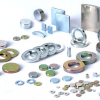
Every type of rare earth magnet, whether neodymium, AlNiCo, or something else, has its own alphanumerical system for classifying strength. Each one is unique, and there’s no simple formula for translating a system from one magnet type into the system for another.
Because the classification systems are so different, it’s important to understand each magnet’s rating system so you can prevent magnet failures and potentially costly or dangerous situations.
Cracking Neodymium’s N-Ratings
Neodymium magnets are categorized by N-ratings, typically formed by an N, then a number, and then sometimes a couple more letters.
The N stands for neo, an industry simplification of neodymium. The numbers, however, are more complicated. In general, the number indicates the strength of the magnet, measured in Megagauss Oersted (MGOe). If a magnet has a grade of N-42, it has a maximum energy product of 42 MGOe. For every increase of 1, the magnet’s strength increases by about 1%. For example, an N-42 magnet is about 2% stronger than an N-40 magnet.
Once you’ve read the N and the following integers, you need to consider whether there are any letters after the numbers. These letters signal the maximum working temperature (the temperature at which the magnet will begin to lose strength) and the Curie temperature (the temperature at which the magnet will lose all magnetism).
Here’s what you can expect for each letter combination:
| Letter | Max Working Temperature | Curie Temperature |
| No other letters | ≤80°C | 320°C-330°C |
| H | ≤120°C | 330°C-340°C |
| SH | ≤150°C | 340°C-350°C |
| UH | ≤180°C | 350°C-360°C |
| EH | ≤200°C | 360°C-370°C |
When using a magnet with an N-rating that includes letters, proceed with caution. Neodymium magnets that can withstand higher temperatures aren’t pure neodymium. In order to withstand high temperatures, the neodymium needs to mix with other, weaker metals. In general, the more heat resistance a neodymium magnet has, the weaker it will be. If you need a magnet with high heat resistance and high strength, you’ll want a magnet with a high numerical rating as well.
You’ll also need to keep an eye on your budget as these magnets are generally more expensive than those that aren’t designed to withstand high temperatures.
Putting Your Knowledge to Use
Now that you understand N-Ratings, let’s practice. Say you have a magnet with the following spec: N-30SH. What do you know about it?
The N tells us the magnet is primarily made of neodymium. The 30 tells us its max energy production is 30 MGOe. Finally, the SH means the magnet’s max working temperature is about 150°C, and its Curie temperature is between 340°C and 350°C.
Get Your Hands on Neodymium Magnets
Since you know how neodymium magnets are rated, you should have a pretty good idea of what you need for your facility. Of course, our customer service team is standing by if you need help. When you are ready to buy, Apex Magnets offers a huge selection of neodymium magnets perfectly suited for a variety of applications. If you can’t find what you’re looking for, Apex Magnets offers custom magnets as well.

DIY Electronics
https://www.diyelectronics.co.za/
DIYElectronics is commited as a company to provide you with the widest range of electronics to suit your professional or hobby needs. We understand that good electronics is important to any project, we also understand that every new project brings a host of new challenges. That is why we have created this WIKI for you, to help you in your projects, whether you are buying your first 3d printer or building a rocket to the moon, our aim is to make every step of your creative journey just a little bit easier.

Dealzer
Dealzer has some interesting items for sale that focuses on hydroponics and indoor plant growing.
As I have the scenario set up from many years of reading castaway type stories I have been on the lookout for plant growing systems that would work underground or in space. Mars here I come…